

Filter runs based on their name, state, tags, or other properties with the expression editor in the Runs table. When you add a filter, you first choose a field (for example, tags, timestamp, or entity). Each field has an underlying type, such as text, time, or ID. The list of operators you see (for example, is, in, ≥, within last) depends on this type. After you choose a field, the UI only shows operators that are valid for that field’s type.Documentation Index
Fetch the complete documentation index at: https://wb-21fd5541-weave-agents.mintlify.app/llms.txt
Use this file to discover all available pages before exploring further.
Common operators by type
| Filter type | Example fields | Common operators | Example usage |
|---|---|---|---|
| Tags | tags | is, is not, in, not in | tags is "baseline" |
| Time | created timestamp | ≤, ≥, within last | created timestamp ≥ 01/16/2026 |
| String | state | =, ≠, IN, NOT IN | state = "finished" |
The above table shows only a subset of available fields and operators. The expression editor shows all available fields and operators.
Create a filter expression
- Navigate to the Runs tab from the project sidebar.
- Select the Filter button, which looks like a funnel, above the runs table.
- From left to right, select a column name, a logical operator, and a filter value to create a filter expression. The filter is applied as soon as you select a filter value.
- Optionally select New Filter to apply additional AND or OR conditions.
- Optionally select New group to group filters together with parentheses. This allows you to create complex filter expressions such as A AND (B OR C).
- Close the filter expression editor by clicking the x icon in the top right corner.
1:
Example: Filter runs with tags
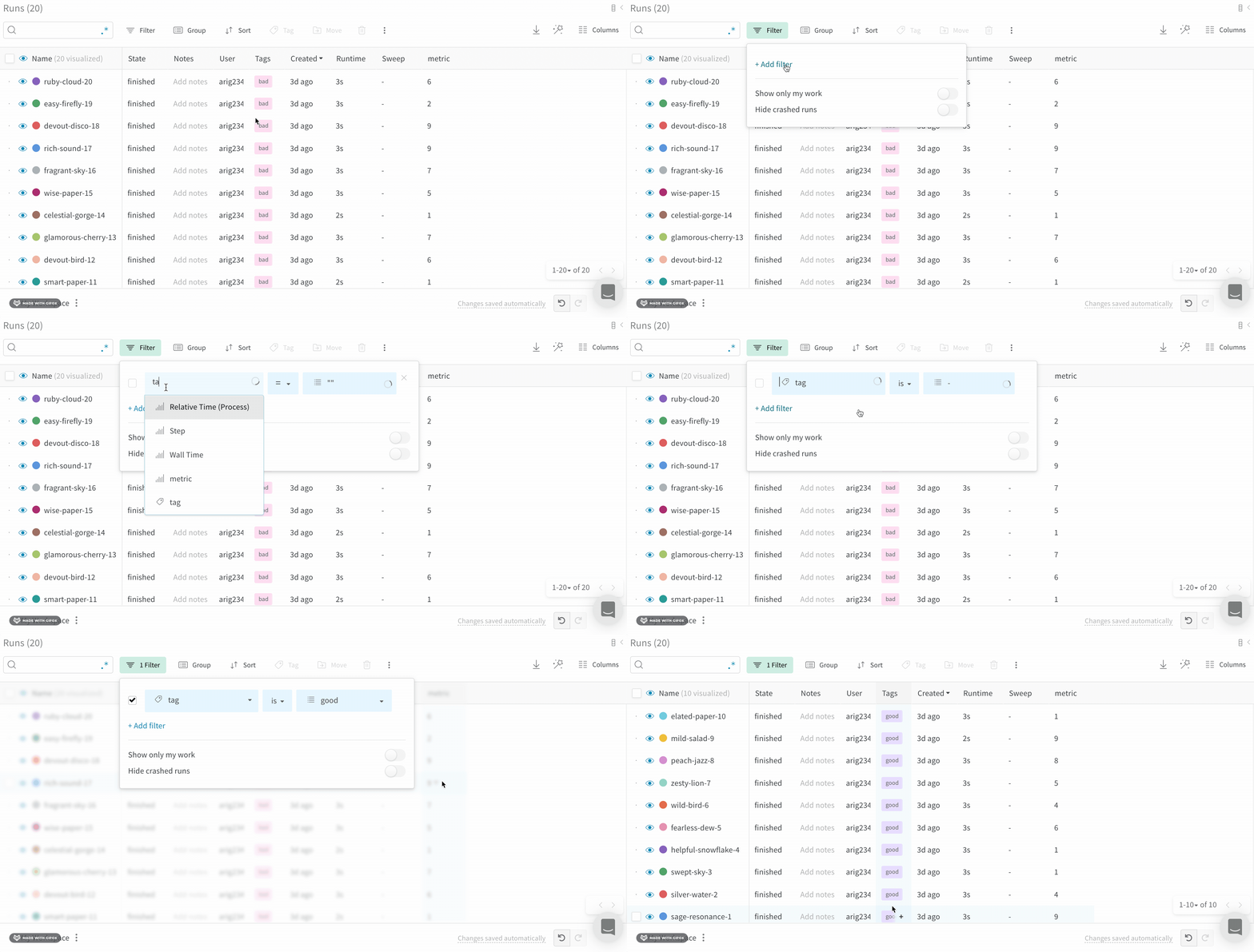
Filter runs based on their tags:- Click on the Runs tab from the project sidebar.
- Select the Filter button, which looks like a funnel, above the runs table.
- From left to right, select
"Tags"from the dropdown menu select a logic operator. - Select is, is not, in, or not in from the second dropdown menu.
- Enter the tag name you want to filter by from the third dropdown menu.
Example: Combine filters with AND and OR conditions
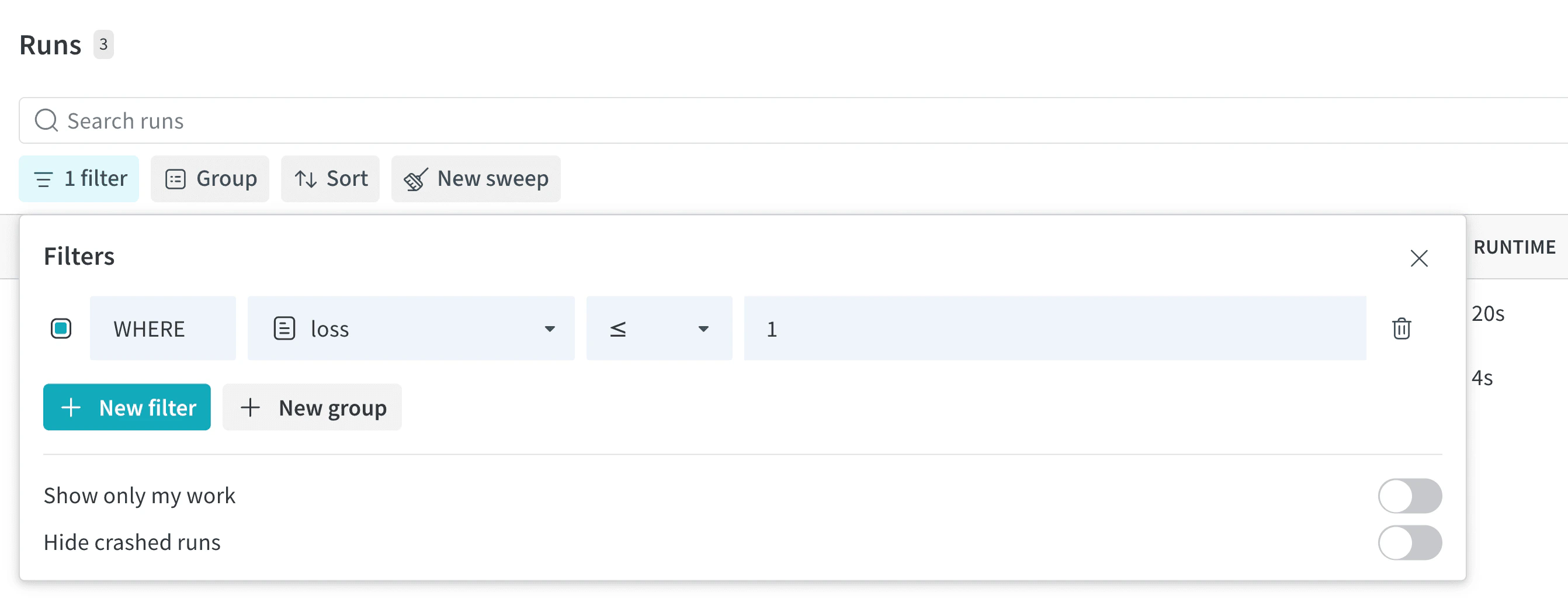
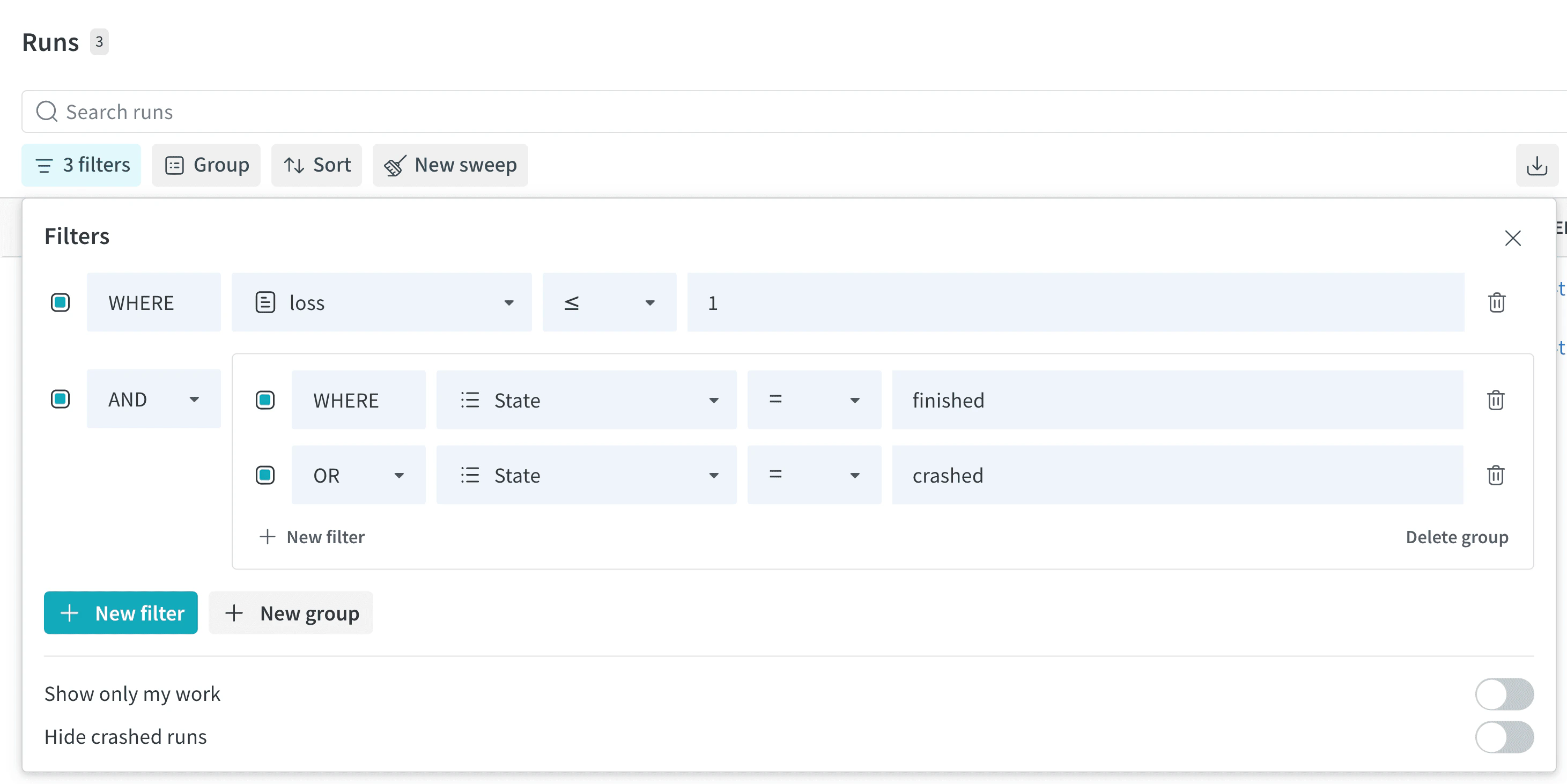
This section describes how to create a complex filter expression likeA AND (B OR C). In this example, A is loss ≤ 1, B is State = finished, and C is State = crashed.
- Click on the Runs tab from the project sidebar.
- Select the Filter button, which looks like a funnel, above the runs table.
- From left to right, select
lossfrom the first dropdown menu, select ≤ from the second dropdown menu, and enter1in the third dropdown menu. This creates filter A. - Click New Filter and select New group to create a new group for filters B and C.
- For filter B, select
Statefrom the first dropdown menu, select=from the second dropdown menu, and selectfinishedfrom the third dropdown menu. - Click New Filter to create filter C, and select
Statefrom the first dropdown menu, select=from the second dropdown menu, and selectcrashedfrom the third dropdown menu.
Default filters
By default, W&B provides the following filters:- Show only my works: Shows only runs created by the current user.
- Hide crashed runs: Hides runs with the
crashedstate.
Remove a filter
To remove a filter from the Runs table:- Click on the Filter button, which looks like a funnel, above the runs table.
- Select the
xicon next to the filter you want to remove.